


Knowledge Base
go directly to the main content
- FRITZ!Box 7690
- FRITZ!Box 7682
- FRITZ!Box 7590 AX
- FRITZ!Box 7590
- FRITZ!Box 7583 VDSL
- FRITZ!Box 7583
- FRITZ!Box 7582
- FRITZ!Box 7581
- FRITZ!Box 7560
- FRITZ!Box 7530 AX
- FRITZ!Box 7530
- FRITZ!Box 7520
- FRITZ!Box 7510
- FRITZ!Box 7490
- FRITZ!Box 7430
- FRITZ!Box 7390
- FRITZ!Box 7360
- FRITZ!Box 6890 LTE
- FRITZ!Box 6690 Cable
Setting up the FRITZ!Repeater for use with a fiber optic connection
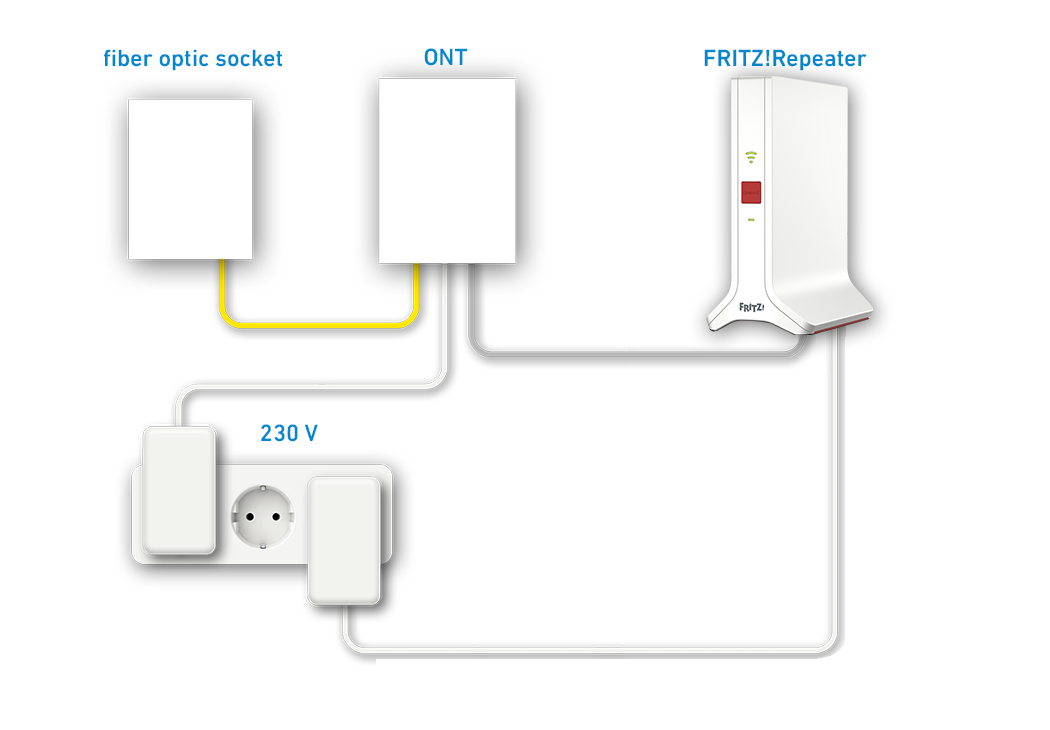
If you do not have a router, you can use your FRITZ!Repeater directly on the fiber optic connection (Fiber to the Home, FTTH) with an additional fiber optic modem.
Since the FRITZ!Repeater establishes and controls its own internet connection over the fiber optic modem, all FRITZ!Repeater functions (such as firewall, parental controls) are also available without restriction in this operating mode.
Note:All instructions on configuration and settings given in this guide refer to the latest FRITZ!OS for the FRITZ!Repeater.
1 Connecting the FRITZ!Repeater to the fiber optic modem
- Insert one end of a network cable into the 'LAN 1' port on the FRITZ!Repeater. Use the network cable supplied with the FRITZ!Repeater, for example.
- Insert the other end of the network cable into the LAN port on the fiber optic modem (ONT, Optical Network Termination).
2 Connecting a wireless device to the FRITZ!Repeater
- Make note of the Wi-Fi network key from the type label on the FRITZ!Repeater.
- Plug the FRITZ!Repeater into an electrical socket and wait about 1 minute until the FRITZ!Repeater has started and the Connect LED flashes slowly.
- Search for Wi-Fi networks in the vicinity with a wireless device (for example a notebook, smartphone).
- Select the Wi-Fi network 'FRITZ!Repeater [...]'.
- Enter the Wi-Fi network key (password) you made note of.
Note:You can also establish the Wi-Fi connection on your mobile devices by pointing the camera at the QR code for Wi-Fi access on the type label or on the back of the quick guide.
3 Configuring the internet connection in the FRITZ!Repeater
- Open the user interface of the FRITZ!Repeater.
- Enter the FRITZ!Repeater password given on the type label of the FRITZ!Repeater and click on 'Log In'.
- Click on 'Internet' and then on 'Account Information'.
- Select 'connection to a fiber optic modem (ONT)' from the drop-down list 'Internet connection via'.
-
- If your internet service provider is displayed in the 'Please select internet provider' drop-down list:
- Select your internet service provider.
- If account information is required, enter the account information you received from your internet service provider in the corresponding fields.
- If your internet service provider is not displayed in 'Please select internet provider' the drop-down list:
- Select 'other internet service provider'.
- If account information is required, enter the account information you received from your internet service provider in the corresponding fields.
- If account information is not required, enable the 'No' option in the 'Account Information' section.
- If the internet service provider requires you to use a particular VLAN ID, click on 'Change Connection Settings', enable the 'Use VLAN for internet access' option, and enter the VLAN ID.
- If your internet service provider is displayed in the 'Please select internet provider' drop-down list:
- Enter the speeds of your internet connection in the 'Downstream' and 'Upstream' fields.
- Click on 'Apply' to save the settings.
- Now the FRITZ!Repeater checks whether the internet connection can be established. Configuration is complete as soon as the message 'The internet connection check was successful' is displayed.
Note:If the internet connection check fails, your internet access may not have been activated yet, or the account information is incorrect. In this case, contact the internet service provider.
You can configure additional FRITZ!Repeaters as described in the guide Connecting FRITZ!Repeater to the FRITZ!Repeater (Mesh Master). Then you can connect your wireless devices to the FRITZ!Box home network.
 Deutschland
 International (English)
 United Kingdom
 Österreich
 Nederland
 España
 Italia
 Polska
 België (Nederlands)
 Luxemburg (Deutsch)
 Schweiz (Deutsch)