


Knowledge Base
go directly to the main content
- FRITZ!Box 7690
- FRITZ!Box 7682
- FRITZ!Box 7590 AX
- FRITZ!Box 7590
- FRITZ!Box 7583 VDSL
- FRITZ!Box 7583
- FRITZ!Box 7582
- FRITZ!Box 7581
- FRITZ!Box 7560
- FRITZ!Box 7530 AX
- FRITZ!Box 7530
- FRITZ!Box 7520
- FRITZ!Box 7510
- FRITZ!Box 7490
- FRITZ!Box 7390
- FRITZ!Box 7360
- FRITZ!Box 6890 LTE
- FRITZ!Box 6850 5G
- FRITZ!Box 6850 LTE
- FRITZ!Box 6840 LTE
- FRITZ!Box 6820 LTE
- FRITZ!Box 6690 Cable
- FRITZ!Box 6670 Cable
- FRITZ!Box 6660 Cable
- FRITZ!Box 6591 Cable
- FRITZ!Box 6590 Cable
Slow LAN connection to the FRITZ!Repeater
The speed of the LAN connection (Ethernet) to the FRITZ!Repeater is only 10 or 100 Mbit/s although the device supports gigabit LAN (1 Gbit/s or more).
Simply proceed as described below. After each measure, check whether the problem is solved.
Note:All instructions on configuration and settings given in this guide refer to the latest FRITZ!OS for the FRITZ!Repeater.
1 Connecting the device directly to the FRITZ!Repeater
This step is only necessary if the device is connected to the FRITZ!Repeater by means of a hub/switch, powerline device, LAN/Wi-Fi converter, or other device instead of being connected directly to the FRITZ!Repeater:
- Connect the device directly to a LAN port on the FRITZ!Repeater. If possible, use the network cable included with the FRITZ!Repeater.
- If you can establish a gigabit LAN connection to the FRITZ!Repeater now, then the intermediary device or its cabling does not support gigabit LAN:
- Make sure that the devices support gigabit LAN.
- Update the software / firmware of the devices.
- Use different network cables to connect the devices to the FRITZ!Repeater. Use the shortest possible high-quality network cables (CAT 5e or higher).
2 Testing a different cable
The network cable used to connect the device to the FRITZ!Repeater may be too long, incorrectly wired, or defective:
- Use the shortest possible high-quality network cable to connect the device to the FRITZ!Repeater, for example the network cable included with the FRITZ!Repeater.
Note:Any standard network cable CAT 5e or higher (STP, 1:1) with a maximum length of 100 m can be used to connect to the FRITZ!Repeater.
3 Installing the latest software for the device
- Install the latest software version for the device or the latest driver for the computer's LAN network adapter.
Note:Since Windows Update often does not offer the latest drivers, install the drivers from the manufacturer's website, for example from the Intel download pages.
4 Disabling energy-saving functions for the network adapter
- If any energy-saving functions are enabled for the computer's LAN network adapter or the device, disable them for testing purposes.
Note:In Windows, different energy-saving functions can be set for many network adapters under 'Properties > Power Management' in the Device Manager.
5 Disabling EEE (Energy-Efficient Ethernet) in the FRITZ!Repeater
With EEE, network adapters can be put into an energy-saving standby mode, thus also significantly reducing their average energy consumption. Since there may be compatibility issues with individual network adapters when EEE is enabled, disable EEE for testing purposes:
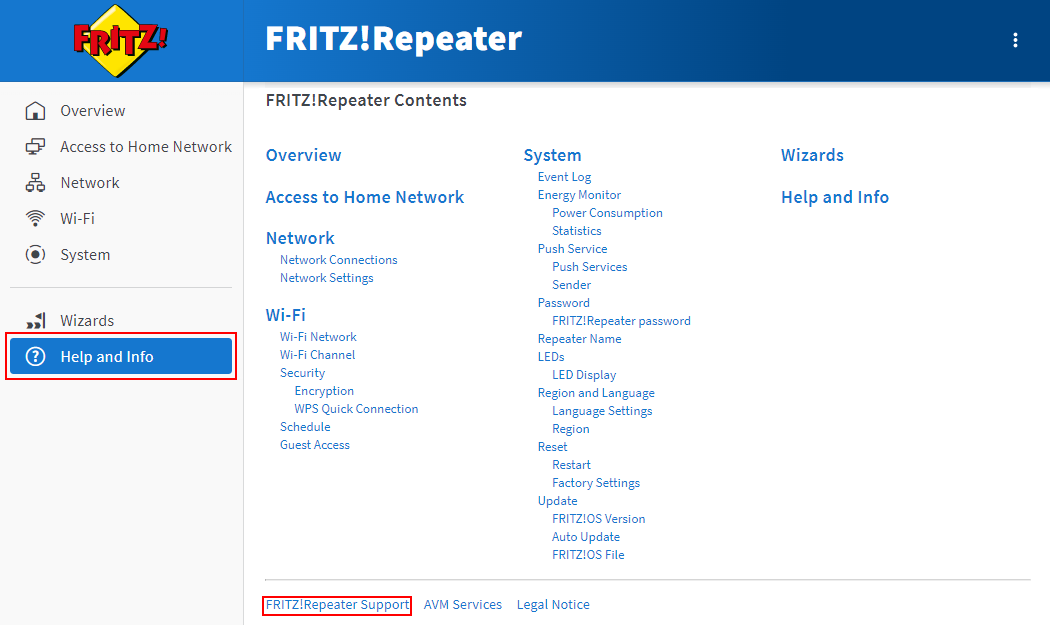
- In the user interface of the FRITZ!Repeater, click on 'Help and Info' on the bottom left of the page and then on 'FRITZ!Repeater Support' at the bottom.
- In the 'Energy-Saving Options' section, disable the 'Energy-Efficient Ethernet (EEE) active' option.
- Click on 'Apply setting' to save the settings.
 Deutschland
 International (English)
 United Kingdom
 Österreich
 Nederland
 España
 Italia
 Polska
 België (Nederlands)
 Luxemburg (Deutsch)
 Schweiz (Deutsch)