


Knowledge Base
go directly to the main content
Connecting FRITZ!Powerline to the FRITZ!Repeater (Mesh Master) via Wi-Fi
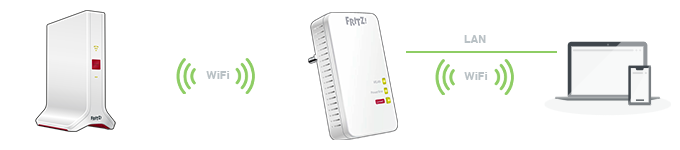
Connect your FRITZ!Powerline to your FRITZ!Repeater (Mesh Master) via Wi-Fi to increase the Wi-Fi range of your home network easily and efficiently. The FRITZ!Powerline device is automatically integrated into the Mesh during setup and marked with the Mesh symbol  in the FRITZ!Repeater user interface. The FRITZ!Powerline device adopts all of the settings from the FRITZ!Repeater, such as Wi-Fi access information and guest access. In the Mesh, your wireless devices automatically connect to the wireless access point that offers the best Wi-Fi reception.
Changes in the Mesh can then be easily made in the FRITZ!Repeater. The FRITZ!Repeater automatically transmits the new settings to the FRITZ!Powerline device. If you still want to access the user interface of the FRITZ!Powerline device, use the password from the FRITZ!Repeater to log in.
Note:All instructions on configuration and settings given in this guide refer to the latest FRITZ!OS for the FRITZ!Powerline device.
1 Loading the factory settings of the FRITZ!Powerline device
To perform the following steps, the FRITZ!Powerline device must be set to factory settings:
- Plug the FRITZ!Powerline device into a socket and wait until the Power LED or WLAN LED remains lit or the Connect LED flashes slowly.
- Push the corresponding button on the device:
Model Button Duration FRITZ!Powerline 1260(E) / 1240 AX Connect 15 seconds FRITZ!Powerline 1220 / 1210 Connect 10-15 seconds FRITZ!Powerline 1240E WLAN - WPS
Powerline - Security15 seconds FRITZ!Powerline 1220E / 1000E Powerline · Security 10-15 seconds FRITZ!Powerline 546E / 540E WLAN · WPS und Powerline · Security 10 seconds FRITZ!Powerline 530E / 510E Security 12 seconds FRITZ!Powerline 520E / 500E Reset 2 seconds - During this process, all of the LEDs flash once. The Power LED or WLAN LED remains lit or the Connect LED flashes slowly as soon as the factory settings have finished loading.
2 Setting up the FRITZ!Powerline device as a wireless bridge
Connecting the FRITZ!Powerline device
- Use a network cable to connect the FRITZ!Powerline device to the home network (for example to a FRITZ!Repeater or Mesh Repeater).
Configuring the FRITZ!Powerline device
- Click on 'Access to Home Network' in the user interface of FRITZ!Powerline. If you are asked for a password, enter the password from the type label of the FRITZ!Powerline device or the password for the user interface of the Mesh Master.
- Click on the 'Change the Type of Connection' button in the 'Access to Home Network' menu.
- Enable the 'Wireless bridge' option and click on 'Next'.
- In the 'Wi-Fi Networks Found' list, select the name (SSID) of the Mesh Master and click on 'Next'.
- Configure the Wi-Fi settings and click on 'Next'.
- Click on 'Finish' to save the settings.
- The WLAN LED on the FRITZ!Powerline device remains lit as soon as setup is completed.
- Clear the LAN connection between the FRITZ!Powerline device and the Mesh Master.
3 Adding the FRITZ!Powerline device to the Mesh by button
- Briefly push the Connect button (see table) on the FRITZ!Powerline device (for about 1 second) and release it again. When you release the button, depending on the FRITZ!Powerline model, several other LEDs flash at the same time.
FRITZ!Powerline model Connect button FRITZ!Powerline 1260(E) / 1240 AX Connect FRITZ!Powerline 1240E WLAN - WPS
Powerline - SecurityFRITZ!Powerline 546E / 540E WLAN · WPS - Within 2 minutes: Push and hold down the Connect button on the FRITZ!Repeater (Mesh Master) until the Connect LED lights up or starts to flash. Other LEDs may also light up or flash.
- The process is complete as soon as the FRITZ!Repeater marks the FRITZ!Powerline device with the Mesh symbol in the Mesh Overview.
4 Finding the ideal location for the FRITZ!Powerline device
To extend the range as much as possible, the FRITZ!Powerline device requires a fast and stable Wi-Fi connection to the Mesh Master:
- Position the FRITZ!Powerline device where the quality of the FRITZ!Repeater's (Mesh Master's) Wi-Fi signal is good. You can find tips on positioning it in the guide Finding the ideal location for FRITZ!Powerline.
5 Adding additional FRITZ!Powerline devices
If you want to set up a new powerline network with additional FRITZ!Powerline devices over your home's wiring, you can easily connect them by pressing a button on the FRITZ!Powerline device that you just set up:
- Plug the FRITZ!Powerline device you want to add to the powerline network into an electrical socket near the FRITZ!Powerline device that you already configured.
- Wait until the FRITZ!Powerline device is ready for operation and the Connect LED flashes slowly or the Power LED or WLAN LED remains lit.
- Briefly push the Connect button (see table) on both of the FRITZ!Powerline devices. You can push the button on whichever FRITZ!Powerline device you want first. When you release the button, the Powerline or Connect LED flashes. Depending on the FRITZ!Powerline model, several other LEDs flash at the same time.
FRITZ!Powerline model Connect button FRITZ!Powerline 1260(E) / 1240 AX / 1220 / 1210 Connect FRITZ!Powerline 1240E WLAN - WPS
Powerline - SecurityFRITZ!Powerline 1220E / 1000E / 546E / 540E Powerline · Security FRITZ!Powerline 530E / 520E / 510E / 500E Security - The process is completed and the FRITZ!Powerline devices are connected to each other as soon as the Powerline LED remains lit.
 Deutschland
 International (English)
 United Kingdom
 Österreich
 Nederland
 España
 Italia
 Polska
 België (Nederlands)
 Luxemburg (Deutsch)
 Schweiz (Deutsch)