


Knowledge Base
go directly to the main content
Setting up FRITZ!Box for use with a Telekom DSL line
You want to set up the FRITZ!Box on a Telekom line with IP telephony, for example MagentaZuhause? ✔ It's easy with this step-by-step guide.
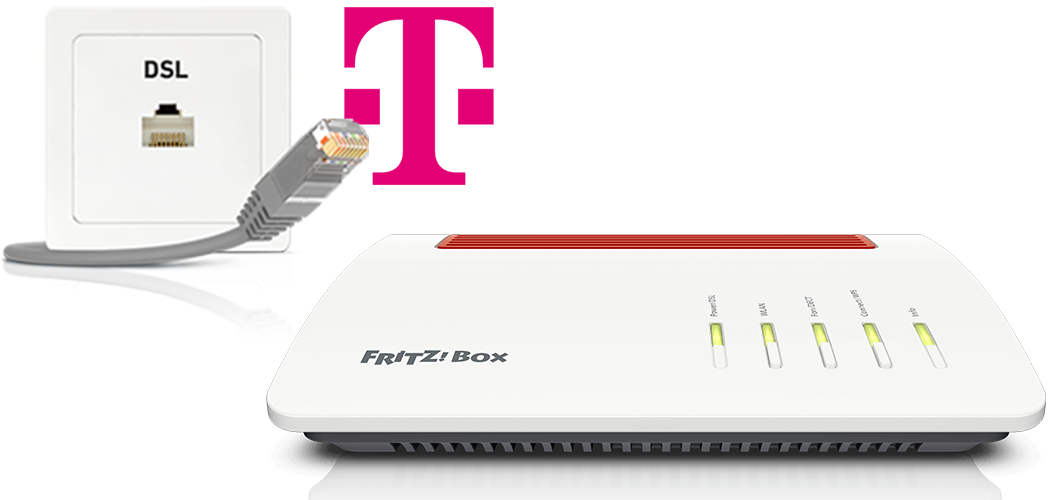
The FRITZ!Box is optimally prepared for use with Deutsche Telekom (for example 'MagentaZuhause', 'MagentaEINS'). Simply connect the FRITZ!Box to the DSL line and enter your personal account information in the FRITZ!Box user interface.
The complete FRITZ!Box range of functions for internet, telephony, and television (MagentaTV) is then available to all of the devices in your home network without restriction.
1 Having your account information ready
- Have your personal account information that you received from Telekom ready.
Note:You will find the account information in the letter that Telekom sent you before activating your connection. If you did not receive your account information, contact Telekom.
2 Connecting the FRITZ!Box to the DSL line
- Insert the DSL cable into the 'DSL' socket on the FRITZ!Box and into the socket labelled 'F' on the phone jack.
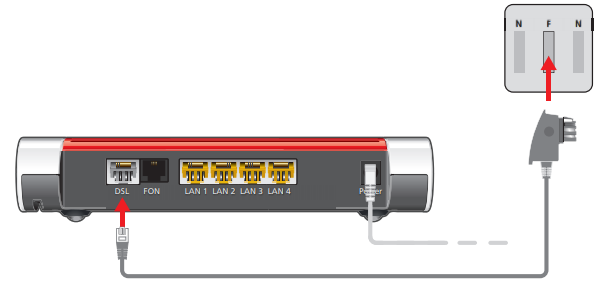
Using a DSL cable to connect FRITZ!Box with an IP-based DSL line
3 Configuring the internet connection in the FRITZ!Box
- Open the FRITZ!Box user interface.
- Enter the FRITZ!Box password given on the type label of the FRITZ!Box and click on 'Log In'.
- If the wizard for internet access does not start automatically, click on 'Wizards' and then on 'Configure the Internet Connection'.
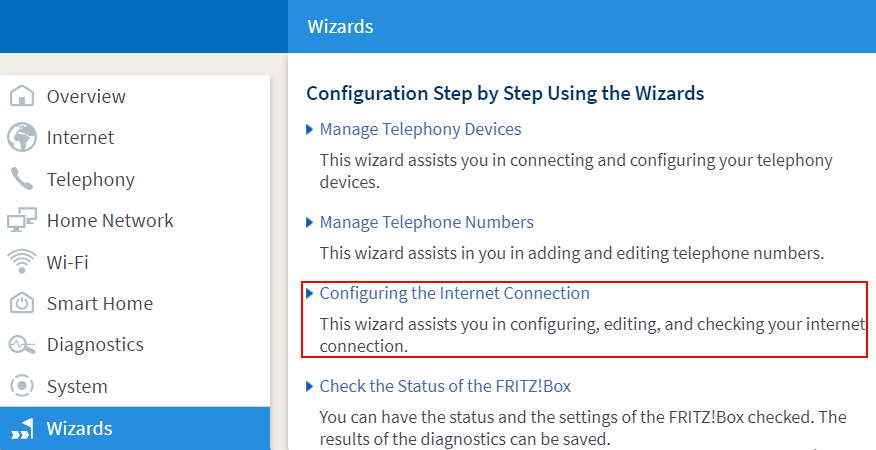
Calling up the FRITZ!Box wizard - In the wizard, select 'Telekom' from the drop-down list.
- Enable the 'EMPFOHLEN: Automatische Einrichtung des Internetzugangs [...]' (RECOMMENDED: Automatic configuration of internet access) option in the 'Telekom DSL-Anschluss' section. If you are not offered setup via EasySupport:
- Enable the correct connection type and click on 'Next'.
- Enter the account information you received from Telekom in the relevant fields.
- Click on 'Next' and follow the wizard's instructions.
- Now the FRITZ!Box checks whether the internet connection can be established. Configuration is complete as soon as the message 'The internet connection check was successful' is displayed.
Important:If the internet connection check fails, your internet access may not have been activated yet. In this case, contact Telekom.
4 Setting up telephony in the FRITZ!Box
Configuring phone numbers
- Click on 'Telephony' in the FRITZ!Box user interface.
- Click on 'Phone Numbers' in the 'Telephony' menu.
- Click on the 'New Phone Number' button.
- If shown, enable the option 'Internet phone number' and click on 'Next'.
- Select 'Telekom' from the drop-down list.
- Enter the internet number (phone number) in the corresponding fields.
- If you disabled the Telekom service 'My Login' later, disable the option 'Use default setting for registration' and enter your email address, for example your-name@t-online.de, in the field 'Email address' and enter your web password in the field 'Password'.
- Click on 'Next' and follow the wizard's instructions.
Assigning phone numbers
- Click on 'Telephony' in the FRITZ!Box user interface.
- Click on 'Telephony Devices' in the 'Telephony' menu.
- Click on the
 (Edit) button for the respective telephony device.
 Important:If the telephony device was not configured yet, click on the 'Configure New Device' button and follow the wizard's instructions.
- From the 'Outgoing Calls' drop-down list, select the number to be used by the telephony device for making outgoing calls. If you do not select a phone number, the number entered under 'Telephony > Phone Numbers > Line Settings' is used for making calls.
- Select the phone numbers to which the telephony device should react when you receive calls. You can select up to ten numbers (including the number for outgoing calls).
- Click on 'Apply' to save the settings.
5 Setting up television (MagentaTV)
These steps are only necessary if you ordered digital television reception (MagentaTV) for your Telekom line:
- Use a network cable to connect the media receiver to a LAN port on the FRITZ!Box.
Note:If you cannot connect the receiver and FRITZ!Box by cable, you can also connect them via Wi-Fi or your home's electrical wiring, for example with a FRITZ!Repeater or FRITZ!Powerline.
 Deutschland
 International (English)
 United Kingdom
 Österreich
 Nederland
 España
 Italia
 Polska
 België (Nederlands)
 Luxemburg (Deutsch)
 Schweiz (Deutsch)