


Knowledge Base
go directly to the main content
Setting up FRITZ!Box for use with an M-net DSL line
The FRITZ!Box is optimally prepared for use with M-net. Simply connect the FRITZ!Box to the DSL line and enter your personal account information in the FRITZ!Box user interface. If M-net provided you with the FRITZ!Box, it will be configured automatically.
The complete FRITZ!Box range of functions for internet, telephony, and TV (M-net TVplus) is then available to all of the devices in the home network without restriction.
Note:All instructions on configuration and settings given in this guide refer to the latest FRITZ!OS for the FRITZ!Box.
1 Having your account information ready
- Have your personal account information for internet access and the account information for telephony that you received from M-net ready.
Note:You can find the account information in the confirmation of your order from M-net. If you did not receive your account information, contact M-net.
2 Connecting the FRITZ!Box to the DSL line
- Insert the DSL cable (Y cable) into the 'DSL' socket on the FRITZ!Box.
- Insert the 'DSL 1' cable end into the DSL socket and leave the 'DSL 2' cable end hanging. If you are using the FRITZ!Box on a VDSL bonding line, also insert the cable end 'DSL 2' into the VDSL bonding socket.
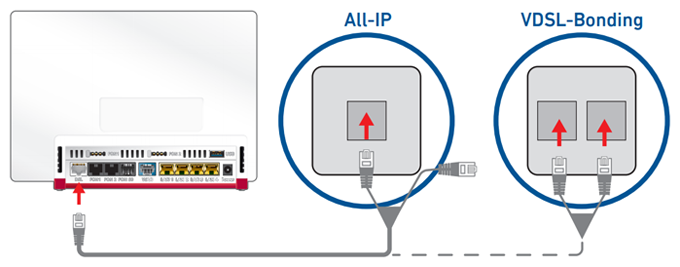
Connecting the FRITZ!Box to an IP-based DSL line (left) or a VDSL bonding line (right)
3 Configuring the internet connection in the FRITZ!Box
- Open the FRITZ!Box user interface.
- Enter the FRITZ!Box password given on the type label of the FRITZ!Box and click on 'Log In'.
- If the wizard for internet access does not start automatically, click on 'Wizards' and then on 'Configure the Internet Connection'.
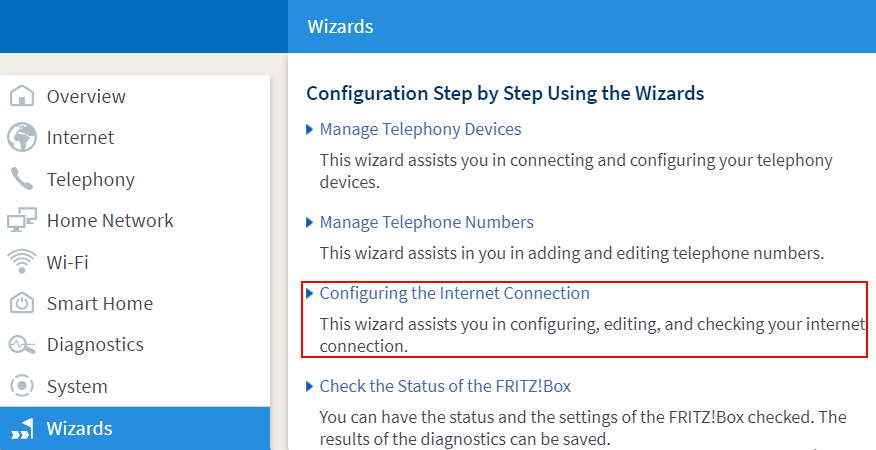
Calling up the FRITZ!Box wizard - Select 'more internet service providers' from the drop-down list.
- Select 'M-net' from the second drop-down list and then 'M-net FTTB, FTTC und ADSL', then click on 'Next'.
- Enter the account information you received from M-net in the fields.
- Click on 'Next' and follow the wizard's instructions. The wizard connects the FRITZ!Box to the internet.
Important:If the FRITZ!Box cannot connect to the internet, either your internet access has not been activated yet, or the account information is incorrect. In this case, contact M-net.
4 Setting up telephony in the FRITZ!Box
Configuring phone numbers
- Click on 'Telephony' in the FRITZ!Box user interface.
- Click on 'Phone Numbers' in the 'Telephony' menu.
- Click on the 'New Phone Number' button.
- Select 'Other provider' from the drop-down list.
- Enter the login information supplied by M-net in the corresponding fields.
- Click on 'Next' and follow the wizard's instructions.
Assigning phone numbers
- Click on 'Telephony' in the FRITZ!Box user interface.
- Click on 'Telephony Devices' in the 'Telephony' menu.
- Click on the
 (Edit) button for the respective telephony device.
 Important:If the telephony device was not configured yet, click on the 'Configure New Device' button and follow the wizard's instructions.
- From the 'Outgoing Calls' drop-down list, select the number to be used by the telephony device for making outgoing calls. If you do not select a phone number, the number entered under 'Telephony > Phone Numbers > Line Settings' is used for making calls.
- Select the phone numbers to which the telephony device should react when you receive calls. You can select up to ten numbers (including the number for outgoing calls).
- Click on 'Apply' to save the settings.
 Deutschland
 International (English)
 United Kingdom
 Österreich
 Nederland
 España
 Italia
 Polska
 België (Nederlands)
 Luxemburg (Deutsch)
 Schweiz (Deutsch)