


Knowledge Base
go directly to the main content
Setting up the FRITZ!Box for use with a phonestar* DSL line

The FRITZ!Box is optimally prepared for use with a DSL line from phonestar*. Simply connect the FRITZ!Box to the DSL line and enter your personal login information in the FRITZ!Box user interface.
The complete FRITZ!Box range of functions for internet, telephony, and smart home is then available to all of the devices in the home network without restriction.
Note:All instructions on configuration and settings given in this guide refer to the latest FRITZ!OS for the FRITZ!Box.
1 Connecting the FRITZ!Box to the DSL line
How to connect the cables depends on the type of phone port you have:
Phone socket with LAN port
- Use a network cable to connect the port marked 'DSL' on the FRITZ!Box to the LAN port on the phone socket, for example the network cable included with delivery.
Phone socket with Reichle port
- Insert the Reichle adapter (TT89/RJ11) into the Reichle port of the phone socket.
- Insert the DSL cable into the 'DSL' port on the FRITZ!Box and into the Reichle adapter.
2 Setting the country of use
- Open the FRITZ!Box user interface.
- Enter the FRITZ!Box password given on the type label of the FRITZ!Box and click on 'Log In'.
- Click on 'System' and then on 'Region and Language'.
- Click on the 'Region' tab. If the tab is not displayed, then the FRITZ!Box is configured for use in Germany. With this FRITZ!Box model, the country of use cannot be changed.
- Select 'Switzerland' from the drop-down list.
Important:When the regional options are changed, the phone settings (for example telephony devices, call diversion settings, dialling rules) are reset and must be reconfigured.
- Click on 'Apply' to save the settings.
3 Configuring the internet connection in the FRITZ!Box
- Click on 'Wizards' in the FRITZ!Box user interface.
- If the wizard for internet access does not start automatically, click on 'Wizards' and then on 'Configure the Internet Connection'.
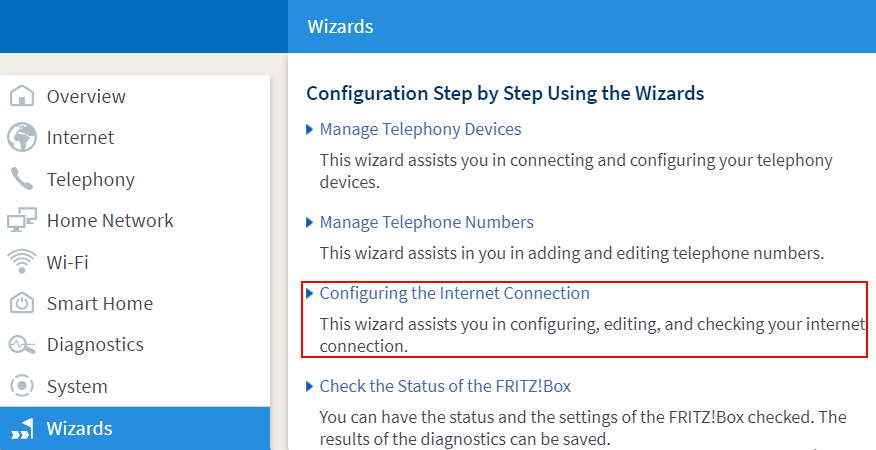
Calling up the FRITZ!Box wizard - Select 'phonestar*' from the drop-down list and enable the correct connection type.
- Click on 'Next' and follow the wizard's instructions.
4 Setting up telephony in the FRITZ!Box
Having your account information ready
- Have the account information for telephony that you received from phonestar* ready.
Note:phonestar* sent you the login information via email after you concluded the contract with them. If you did not receive your login information, contact phonestar*.
Configuring telephone numbers
- Click on 'Telephony' in the FRITZ!Box user interface.
- Click on 'Phone Numbers' in the 'Telephony' menu.
- Click on the 'New Phone Number' button.
- Select 'phonestar*' from the drop-down list.
- Enter your phone number including the area code by 'Internet phone number' (for example 0441234567).
- Enter the login information supplied by phonestar* in the corresponding fields.
- Enter your area code in the 'Area code' field (for example 044).
- Click on 'Next' and follow the wizard's instructions.
Assigning telephone numbers
- Click on 'Telephony' in the FRITZ!Box user interface.
- Click on 'Telephony Devices' in the 'Telephony' menu.
- Click on the
 (Edit) button for the respective telephony device.
 Important:If the telephony device was not configured yet, click on the 'Configure New Device' button and follow the wizard's instructions.
- From the drop-down list 'Outgoing Calls', select the number to be used by the telephony device for making outgoing calls. If you do not select a telephone number, the number entered under 'Telephony > Telephone Numbers > Line Settings' is used for making calls.
- Select the telephone numbers to which the telephony device should react when you receive calls. You can select up to ten numbers (including the number for outgoing calls).
- Click on 'Apply' to save the settings.
 Deutschland
 International (English)
 United Kingdom
 Österreich
 Nederland
 España
 Italia
 Polska
 België (Nederlands)
 Luxemburg (Deutsch)
 Schweiz (Deutsch)