


Knowledge Base
go directly to the main content
Setting up FRITZ!Box for use with a Scarlet line
To use the FRITZ!Box with a Scarlet line, simply connect it to the DSL line and enter your personal account information in the FRITZ!Box user interface.
The complete FRITZ!Box range of functions for internet and smart home is then available to all of the devices in the home network without restriction.
Important:According to our information, Scarlet currently only supports telephony with routers that they provide themselves. If we find out that telephone numbers from Scarlet can be configured in the FRITZ!Box, we will update this guide.
1 Having your account information ready
- Have your personal account information for internet access that you received from Scarlet ready.
Note:Scarlet sent you the account information via email after you concluded the contract with them. If you did not receive your account information, contact Scarlet.
2 Connecting the FRITZ!Box
- Insert the DSL cable into the 'DSL' socket on the FRITZ!Box and into the DSL line.
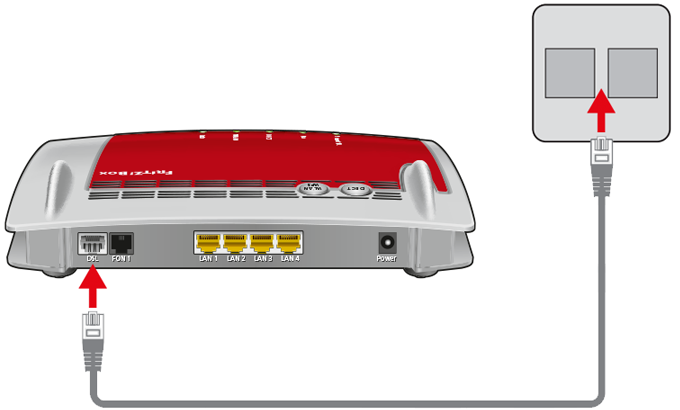
Using a DSL cable to connect FRITZ!Box with a DSL line
3 Configuring the internet connection in the FRITZ!Box
- Open the FRITZ!Box user interface.
- If the FRITZ!Box is set to factory settings, set a password for accessing the user interface and click on 'OK' and then on 'Next'.
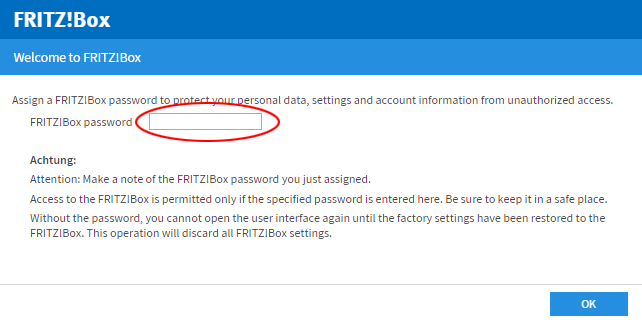
Setting a password for the user interface - If the wizard for internet access does not start automatically, click on 'Wizards' and then on 'Configure the Internet Connection'.
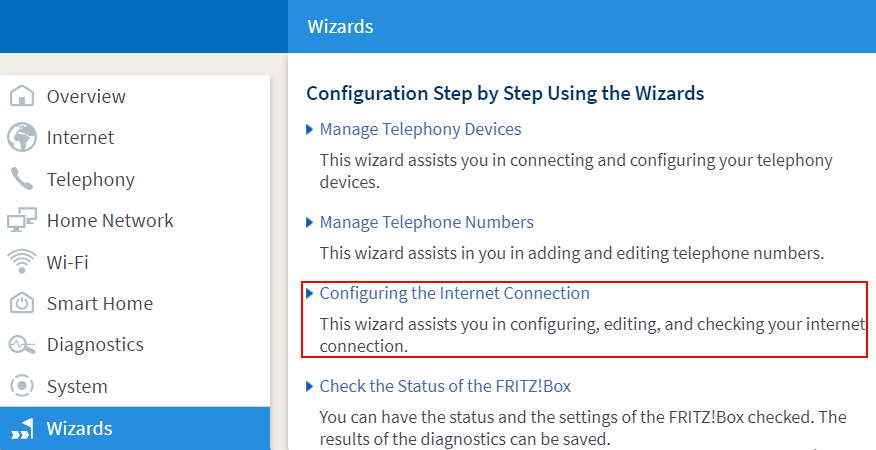
Calling up the FRITZ!Box wizard - Select 'Scarlet VDSL' or 'Scarlet VDSL with TV from the drop-down list.
- Click on 'Next' and follow the wizard's instructions. The wizard connects the FRITZ!Box to the internet.
Important:If the FRITZ!Box cannot connect to the internet, either your internet access has not been activated yet, or the account information is incorrect. In this case, contact Scarlet.
 Deutschland
 International (English)
 United Kingdom
 Österreich
 Nederland
 España
 Italia
 Polska
 België (Nederlands)
 Luxemburg (Deutsch)
 Schweiz (Deutsch)