


Knowledge Base
go directly to the main content
- FRITZ!Box 7690
- FRITZ!Box 7682
- FRITZ!Box 7590 AX
- FRITZ!Box 7590
- FRITZ!Box 7583 VDSL
- FRITZ!Box 7583
- FRITZ!Box 7530 AX
- FRITZ!Box 7530
- FRITZ!Box 7520
- FRITZ!Box 7510
- FRITZ!Box 7490
- FRITZ!Box 6890 LTE
- FRITZ!Box 6850 5G
- FRITZ!Box 6850 LTE
Transferring settings to a new FRITZ!Box
The wizard for easy switching to a different FRITZ!Box transfers all settings from your old FRITZ!Box to your new one. With the wizard, your additional FRITZ! products and the FRITZ!Apps you use can be used with your new FRITZ!Box without having to register or configure them.
During the FRITZ!Box switching procedure, the wizard checks whether a FRITZ!OS update is available for your new FRITZ!Box and installs it if necessary. Once your new FRITZ!Box has been successfully configured, the wizard loads the factory settings of your old FRITZ!Box.
Note:If you cannot use the wizard or only want to import certain settings, you can save the settings of the old FRITZ!Box in a backup file and restore individual settings in the new FRITZ!Box.
Requirements / Restrictions
- FRITZ!OS 7.56 or later is installed on the old FRITZ!Box.
- FRITZ!OS 7.56 or later is available for the new FRITZ!Box.
- Do not insert the SIM card into the new FRITZ!Box until the wizard prompts you to do so.
- The wizard must be run in the FRITZ! home network.
1 Loading the factory settings of the new FRITZ!Box
The new FRITZ!Box must be set to factory settings so that the wizard can transfer the settings. If you already made settings in the new FRITZ!Box, load the factory settings of the new FRITZ!Box:
- Load the FRITZ!Box's factory settings.
2 Disabling keylock of the old FRITZ!Box
While using the wizard you will be asked to push the Connect button on both of the FRITZ!Boxes in order to connect them. Therefore, make sure that keylock is disabled on the old FRITZ!Box before using the wizard:
- Click on 'System' in the FRITZ!Box user interface.
- Click on 'Buttons and LEDs' in the 'System' menu.
- Click on the 'Button Lock' or 'Keylock' tab.
- Disable the button lock.
- Click on 'Apply' to save the settings.
3 Transferring settings
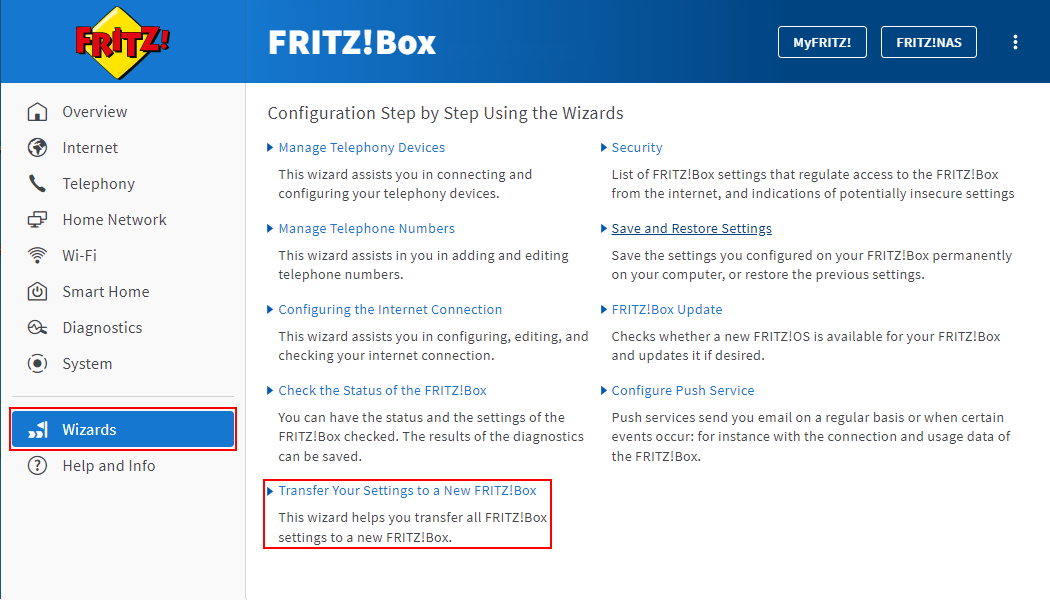
- Click on 'Wizards' on the bottom left of the user interface of the FRITZ!Box that you want to switch from.
- Click on 'Transfer Your Settings to a New FRITZ!Box' in the 'Wizards' menu.
- Follow the wizard’s instructions.
- After the wizard has finished, plug the network cable from the old FRITZ!Box into the new FRITZ!Box.
- Now connect the devices to the FRITZ!Box that were not automatically transferred by the wizard.
 Deutschland
 International (English)
 United Kingdom
 Österreich
 Nederland
 España
 Italia
 Polska
 België (Nederlands)
 Luxemburg (Deutsch)
 Schweiz (Deutsch)