Setting up the FRITZ!Box for use with a VOO cable connection
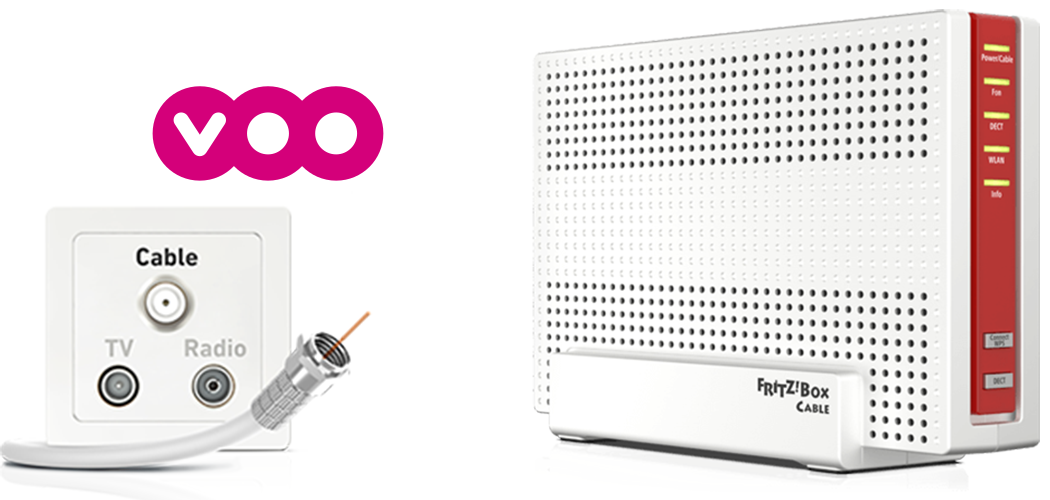
The FRITZ!Box Cable is optimally prepared for use with a VOO cable connection. Have VOO activate the FRITZ!Box, then connect it to the multimedia outlet and configure the internet connection.
The complete FRITZ!Box range of functions for internet, multimedia, and smart home is then available to all of the devices in the home network without restriction.
Important:The FRITZ!Box supports telephony via SIP (Session Initiation Protocol). The FRITZ!Box does not support the PacketCable specification used by VOO. This means that you cannot use telephony from VOO with the FRITZ!Box.
1 Activating the FRITZ!Box
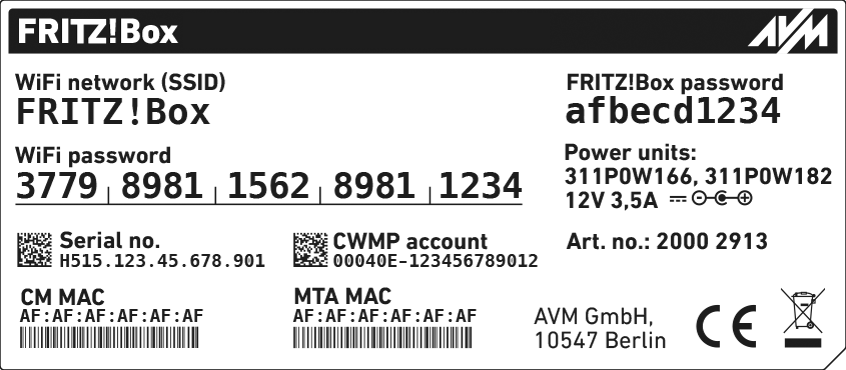
MAC addresses of the FRITZ!Box's cable modem (CM MAC + MTA MAC)
Activate the FRITZ!Box for your cable connection as described in the guidePuis-je utiliser mon propre modem au lieu du modem VOO ?. Have the MAC addresses of your FRITZ!Box's cable modems (CM MAC and MTA MAC) ready. You can find these on the FRITZ!Box's type label.
2 Connecting the FRITZ!Box
Insert one end of the coaxial cable into the Cable socket on the FRITZ!Box. Use the coaxial cable supplied with the FRITZ!Box, for example.
Insert the other end of the coaxial cable into the socket for the internet connection (data socket) on the multimedia socket in your home.
3 Configuring the internet connection in the FRITZ!Box
Enter the FRITZ!Box password given on the type label of the FRITZ!Box and click on 'Log In'.
If the 'Set up Internet Connection' menu is not displayed automatically:
Click on 'Internet' and then on 'Account Information'.
Enable the 'Internet connection via cable' option.
Wait until the 'Power / Cable' LED remains lit. Depending on the signal strength and the way your connection is configured, this may take up to 10 minutes.
Click on 'Apply' or 'Next' to save the settings. Restart the FRITZ!Box to complete the configuration of your internet connection.


 Deutschland
 International (English)
 United Kingdom
 Österreich
 Nederland
 España
 Italia
 Polska
 België (Nederlands)
 Luxemburg (Deutsch)
 Schweiz (Deutsch)