


Knowledge Base
go directly to the main content
Setting up the FRITZ!Box for use with a wilhelm.tel cable connection
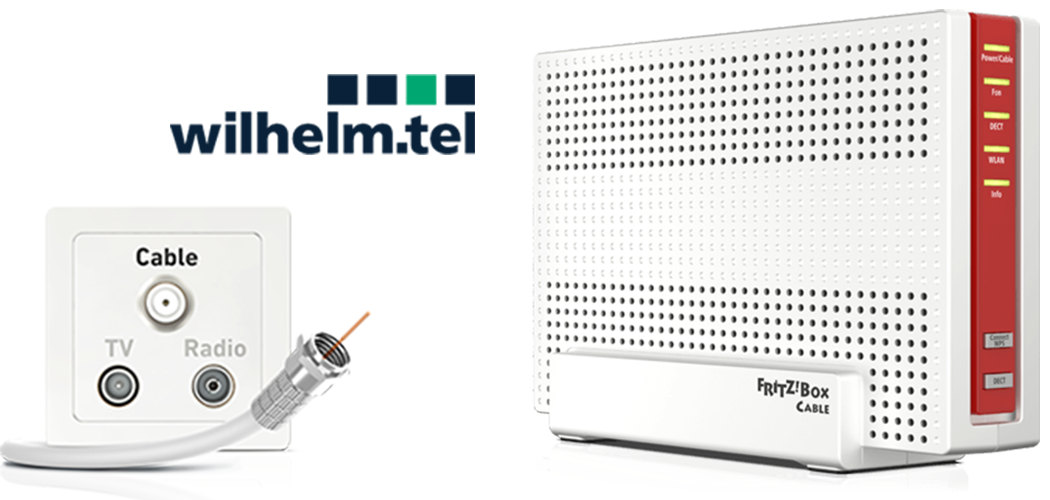
The FRITZ!Box Cable is optimally prepared for use with a wilhelm.tel cable connection. Have wilhelm.tel activate the FRITZ!Box and then connect it to the multimedia outlet.
The complete FRITZ!Box range of functions for internet, telephony, and multimedia is then available to all of the devices in your home network without restriction.
1 Activating your FRITZ!Box
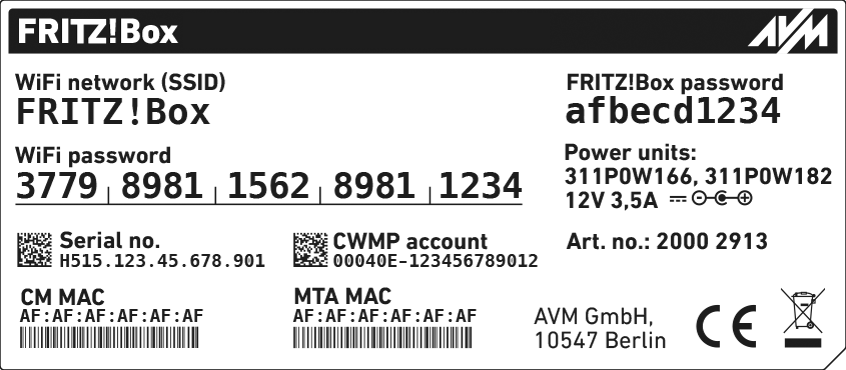
- Call wilhelm.tel's customer service to have them unlock the FRITZ!Box for your cable connection. Have the serial number and MAC address of your FRITZ!Box's cable modem (CM MAC) ready. You can find these on the FRITZ!Box's type label.
2 Connecting the FRITZ!Box
- Insert one end of the coaxial cable into the Cable socket on the FRITZ!Box. Use the coaxial cable supplied with the FRITZ!Box, for example.
- Insert the other end of the coaxial cable into the socket for the internet connection (data socket) on the multimedia socket in your home.
3 Configuring the internet connection in the FRITZ!Box
- Open the FRITZ!Box user interface.
- Enter the FRITZ!Box password given on the type label of the FRITZ!Box and click "Log In".
- If the menu "Set up Internet Connection" is not displayed automatically:
- Click "Internet" and then "Account Information".
- Enable the option "Internet connection via cable".
- Wait until the "Power / Cable" LED remains lit. Depending on the signal strength and the way your connection is configured, this may take up to 10 minutes.
Important:If the "Power / Cable" LED flashes continuously, the cable connection has not been activated yet or the service is disrupted. In this case, contact wilhelm.tel.
- Click "Apply" or "Next" to save the settings. Restart the FRITZ!Box to complete the configuration of your internet connection.
4 Setting up telephony in the FRITZ!Box
Having your account information ready
- Have the login information for telephony that you received from wilhelm.tel ready (for example the username and password).
Note:You will find the login information in the letter that wilhelm.tel sent you before activating your connection. If you did not receive your login information, contact wilhelm.tel.
Configuring phone numbers
- Click "Telephony" in the FRITZ!Box user interface.
- Click "Telephone Numbers" in the "Telephony" menu.
- Click the "New Telephone Number" button.
- Select "wilhelm.tel" from the drop-down list.
- Enter the login information supplied by wilhelm.tel in the corresponding fields.
- Click "Next" and follow the wizard's instructions.
Assigning phone numbers
- Click on 'Telephony' in the FRITZ!Box user interface.
- Click on 'Telephony Devices' in the 'Telephony' menu.
- Click on the
 (Edit) button for the respective telephony device.
 Important:If the telephony device was not configured yet, click on the 'Configure New Device' button and follow the wizard's instructions.
- From the 'Outgoing Calls' drop-down list, select the number to be used by the telephony device for making outgoing calls. If you do not select a phone number, the number entered under 'Telephony > Phone Numbers > Line Settings' is used for making calls.
- Select the phone numbers to which the telephony device should react when you receive calls. You can select up to ten numbers (including the number for outgoing calls).
- Click on 'Apply' to save the settings.
 Deutschland
 International (English)
 United Kingdom
 Österreich
 Nederland
 España
 Italia
 Polska
 België (Nederlands)
 Luxemburg (Deutsch)
 Schweiz (Deutsch)