


Knowledge Base
go directly to the main content
Setting up the FRITZ!Box for use with a Vodafone cable connection (formerly Unitymedia)
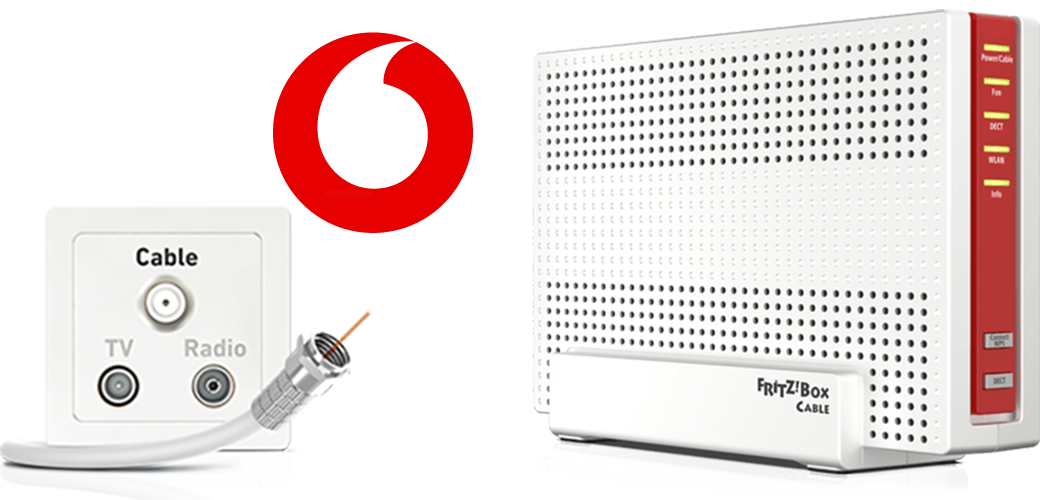
The FRITZ!Box Cable is optimally prepared for use with a Vodafone cable connection (formerly Unitymedia). Have Vodafone activate the FRITZ!Box, then connect it to the multimedia outlet and configure telephony.
The complete FRITZ!Box range of functions for internet, telephony, and smart home is then available to all of the devices in your home network without restriction.
Important:In this guide, we describe the procedure for Baden-Württemberg, Hesse, and North Rhine-Westphalia. If you are using the FRITZ!Box in a different Federal State in Germany, use the guide Setting up the FRITZ!Box for use with a Vodafone cable connection.
Requirements / Restrictions
- Gigabit packages from Vodafone (for example 'Red Internet & Phone 1000 Cable') are offered exclusively with the DOCSIS 3.1 cable standard and can therefore only be used with current FRITZ!Box Cable models.
1 Unlocking your FRITZ!Box
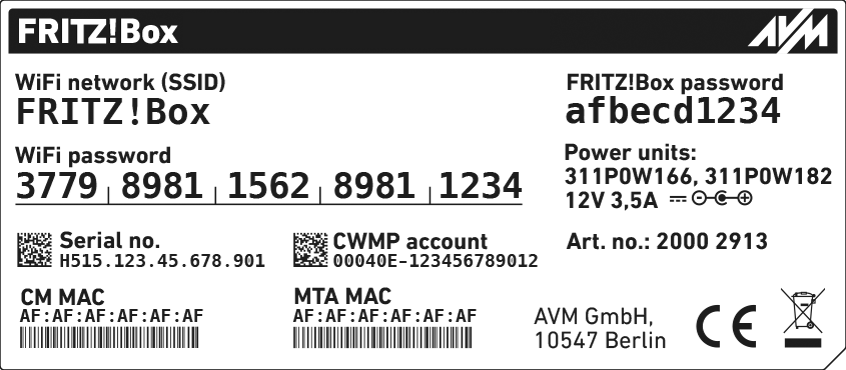
- Call the customer service from Vodafone to have them unlock the FRITZ!Box for your cable connection. Have the serial number and MAC address of your FRITZ!Box's cable modem (CM MAC) ready. You can find these on the FRITZ!Box's type label.
2 Connecting the FRITZ!Box
- Insert one end of the coaxial cable into the Cable socket on the FRITZ!Box. Use the coaxial cable supplied with the FRITZ!Box, for example.
- Insert the other end of the coaxial cable into the socket for the internet connection (data socket) on the multimedia socket in your home.
3 Configuring the internet connection in the FRITZ!Box
- Open the FRITZ!Box user interface.
- Enter the FRITZ!Box password given on the type label of the FRITZ!Box and click on 'Log In'.
- If the 'Set up Internet Connection' menu is not displayed automatically:
- Click on 'Internet' and then on 'Account Information'.
- Enable the 'Internet connection via cable' option.
- Wait until the 'Power / Cable' LED remains lit. Depending on the signal strength and the way your connection is configured, this may take up to 10 minutes.
Important:If the 'Power / Cable' LED flashes continuously, the cable connection has not been activated yet or the service is disrupted. In this case, contact Vodafone.
- Click on 'Apply' or 'Next' to save the settings. Restart the FRITZ!Box to complete the configuration of your internet connection.
4 Setting up telephony in the FRITZ!Box
Having your login information ready
- Call up the login information for telephony in Vodafone's customer portal MeinVodafone under 'Einstellungen > SIP-Daten'.
ATTENTION!Vodafone is currently switching telephony to a new system (Nokia IMS) um. If your login information mentions a SIP registrar xxxx.fixed.vodafone.de, then your connection was switched to Nokia IMS. In this case, configure your phone numbers as described in Vodafone's guide and select 'other internet service provider'.
Note:In a future FRITZ!OS, we will adjust Vodafone's provider profile so that you can select Vodafone to configure your phone numbers again.
Configuring phone numbers
- Click on 'Telephony' in the FRITZ!Box user interface.
- Click on 'Phone Numbers' in the 'Telephony' menu.
- Click on the 'New Phone Number' button.
- Select 'Vodafone (BaWü)' or 'Vodafone (NRW/Hessen)' from the drop-down list.
- Enter the login information supplied by your provider in the corresponding fields.
- Click on 'Next' and follow the wizard's instructions.
Assigning phone numbers
- Click on 'Telephony' in the FRITZ!Box user interface.
- Click on 'Telephony Devices' in the 'Telephony' menu.
- Click on the
 (Edit) button for the respective telephony device.
 Important:If the telephony device was not configured yet, click on the 'Configure New Device' button and follow the wizard's instructions.
- From the 'Outgoing Calls' drop-down list, select the number to be used by the telephony device for making outgoing calls. If you do not select a phone number, the number entered under 'Telephony > Telephone Numbers > Line Settings' is used for making calls.
- Select the phone numbers to which the telephony device should react when you receive calls. You can select up to ten numbers (including the number for outgoing calls).
- Click on 'Apply' to save the settings.
 Deutschland
 International (English)
 United Kingdom
 Österreich
 Nederland
 España
 Italia
 Polska
 België (Nederlands)
 Luxemburg (Deutsch)
 Schweiz (Deutsch)