


Knowledge Base
go directly to the main content
Setting up the FRITZ!Box for use with a fiber optic connection from EWE TEL
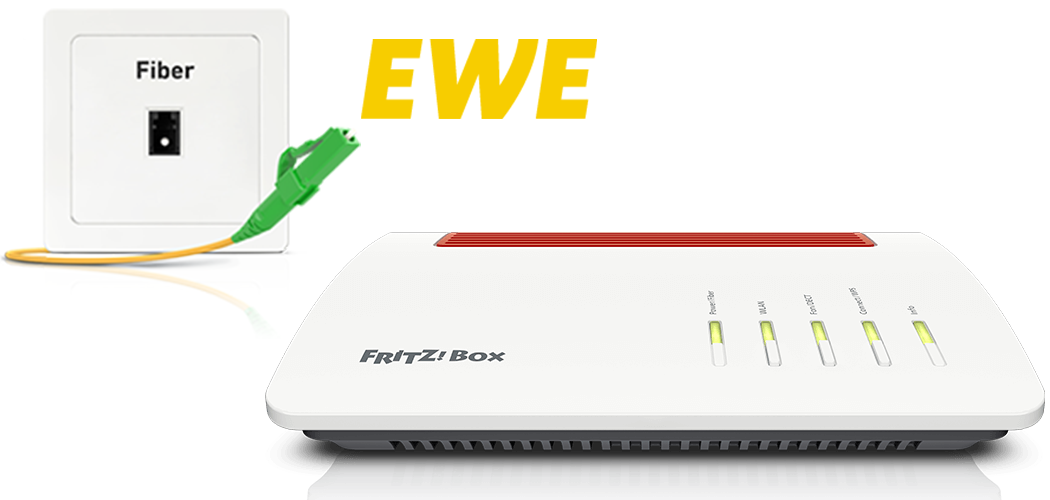
The FRITZ!Box is optimally prepared for use with EWE TEL. Simply connect the FRITZ!Box to the fiber optic connection and enter your personal account information in the FRITZ!Box user interface.
The complete FRITZ!Box range of functions for internet, telephony, and TV (EWE TV) is then available to all of the devices in the home network without restriction.
Requirements / Restrictions
- The SFP plug-in module 'FRITZ!SFP AON' is required for AON fiber optic connections.
- The SFP plug-in module 'FRITZ!SFP GPON' is required for GPON fiber optic connections.
Note:All instructions on configuration and settings given in this guide refer to the latest FRITZ!OS for the FRITZ!Box.
1 Having your account information ready
- Have your personal account information for internet access and the account information for telephony that you received from EWE TEL ready.
Note:You will find the account information in the letter that EWE TEL sent you before activating your connection. If you did not receive your account information, contact EWE TEL.
2 Unlocking your FRITZ!Box
Various technologies are used for EWE TEL's fiber optic connections, some of which require activating the FRITZ!Box:
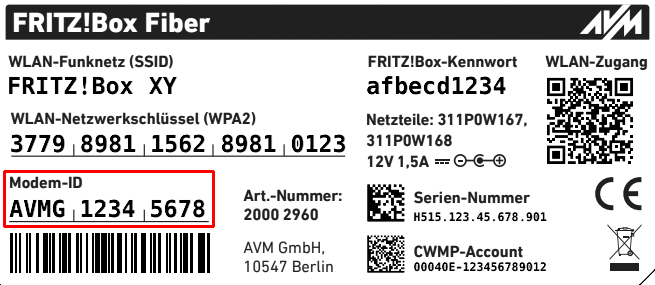
- Call EWE TEL's customer service at 0441 80004727 and ask whether your fiber optic connection is switched as an AON or a GPON connection.
- If you have a GPON connection, have EWE TEL unlock the FRITZ!Box for your line. For this, give them the 'modem ID' on the FRITZ!Box's type label.
3 Inserting the SFP module into the FRITZ!Box
- Insert the SFP module that is suitable for your fiber optic connection into the fiber slot of the FRITZ!Box:
- If you have an AON fiber optic connection, insert the SFP module 'FRITZ!SFP AON' into the fiber slot of the FRITZ!Box.
- If you have a GPON fiber optic connection, insert the SFP module 'FRITZ!SFP GPON' into the fiber slot of the FRITZ!Box.
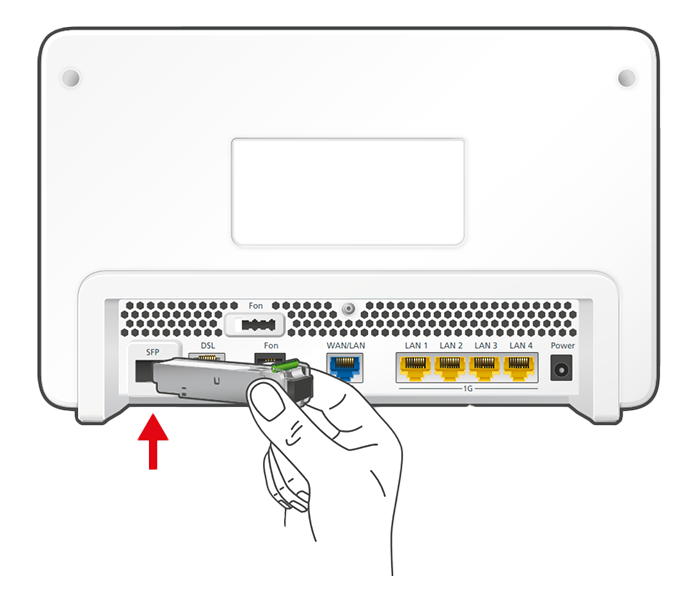
Inserting the SFP module into the FRITZ!Box Important:If you do not know what kind of fiber optic connection you have, test all of the SFP modules supplied with the FRITZ!Box. The Power/Internet LED on the FRITZ!Box remains lit as soon as the FRITZ!Box is connected to the fiber optic connection using the correct SFP module.
4 Connecting the FRITZ!Box to your fiber optic connection
- Remove the dust protection caps from the fiber optic cable, the SFP module in the FRITZ!Box, and from the fiber optic socket.
- Connect the fiber optic cable to the SFP module in the FRITZ!Box and to the fiber optic socket. Do not bend the fiber optic cable and do not hold the ends of the cable in front of your eyes.
Note:You can find information on selecting a suitable fiber optic cable in our guide Which fiber optic cable do I need?
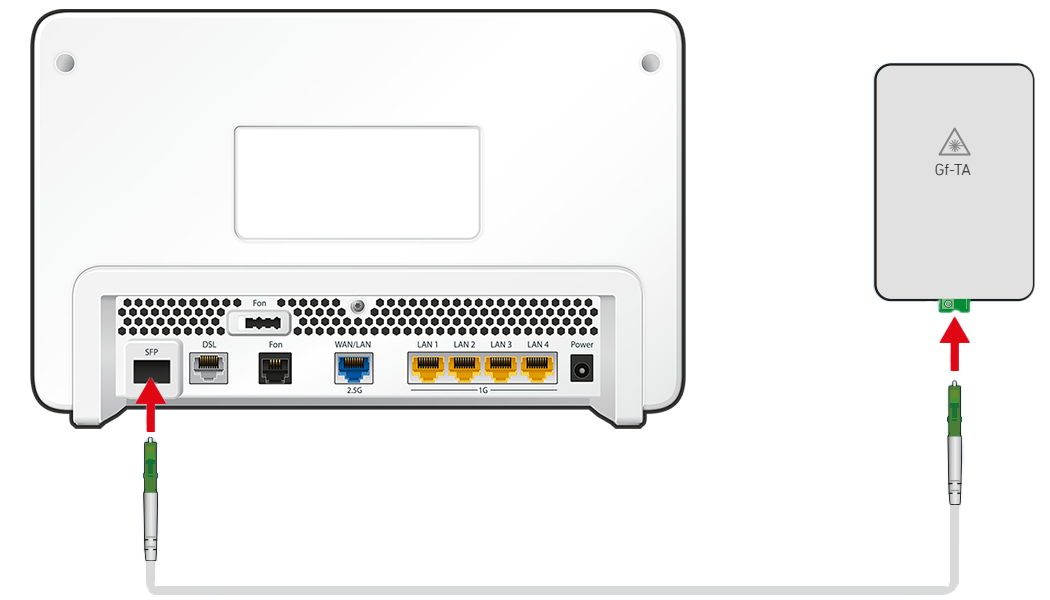
Connecting the FRITZ!Box to the fiber optic connection
5 Plugging the FRITZ!Box in
- Plug the power adapter into the FRITZ!Box's power socket and plug it into an electrical socket.
6 Configuring the internet connection in the FRITZ!Box
- Open the FRITZ!Box user interface.
- Enter the FRITZ!Box password given on the type label of the FRITZ!Box and click on 'Log In'.
- If the wizard for internet access does not start automatically, click on 'Wizards' and then on 'Configure the Internet Connection'.
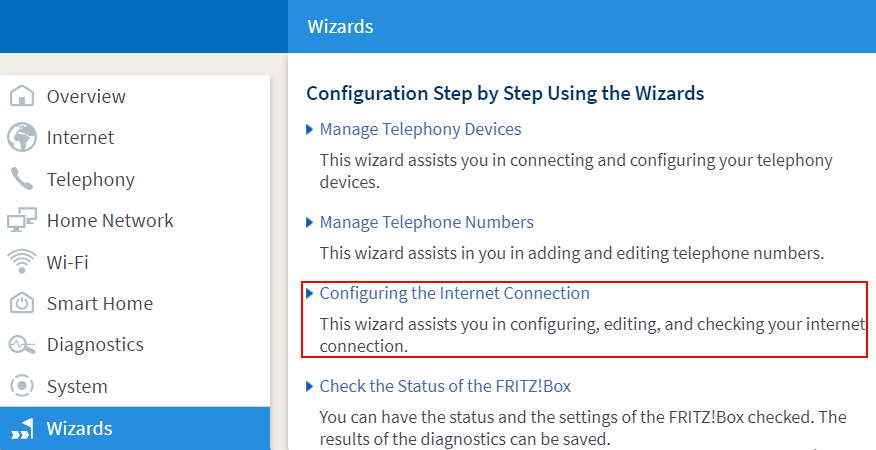
Calling up the FRITZ!Box wizard - Enable the 'Using Fiber Optic for Internet Access' option.
- Select 'EWE - swb - osnatel' from the 'Internet service provider' drop-down list.
- Enable the correct connection type and click on 'Next'.
- If you are using the FRITZ!Box with the access type 'Einrichtung mit Eingabe der Zugangsdaten' ('Configuration by entering account information'), enter the account information you received from EWE TEL in the relevant fields.
- Click on 'Next' and follow the wizard's instructions. The wizard connects the FRITZ!Box to the internet.
Important:If the FRITZ!Box cannot connect to the internet, either your internet access has not been activated yet, or the account information is incorrect. In this case, contact EWE TEL.
7 Setting up telephony in the FRITZ!Box
Configuring phone numbers
- Click on 'Telephony' in the FRITZ!Box user interface.
- Click on 'Phone Numbers' in the 'Telephony' menu.
- Click on the 'New Phone Number' button.
- Select 'EWE - swb - osnatel' from the drop-down list. If you cannot select this, select 'Other provider'.
- Enter the login information supplied by EWE TEL in the corresponding fields.
- Click on 'Next' and follow the wizard's instructions.
Assigning phone numbers
- Click on 'Telephony' in the FRITZ!Box user interface.
- Click on 'Telephony Devices' in the 'Telephony' menu.
- Click on the
 (Edit) button for the respective telephony device.
 Important:If the telephony device was not configured yet, click on the 'Configure New Device' button and follow the wizard's instructions.
- From the 'Outgoing Calls' drop-down list, select the number to be used by the telephony device for making outgoing calls. If you do not select a phone number, the number entered under 'Telephony > Telephone Numbers > Line Settings' is used for making calls.
- Select the phone numbers to which the telephony device should react when you receive calls. You can select up to ten numbers (including the number for outgoing calls).
- Click on 'Apply' to save the settings.
 Deutschland
 International (English)
 United Kingdom
 Österreich
 Nederland
 España
 Italia
 Polska
 België (Nederlands)
 Luxemburg (Deutsch)
 Schweiz (Deutsch)