


Knowledge Base
go directly to the main content
Setting up the FRITZ!Box for use with a fiber optic connection from Online.nl
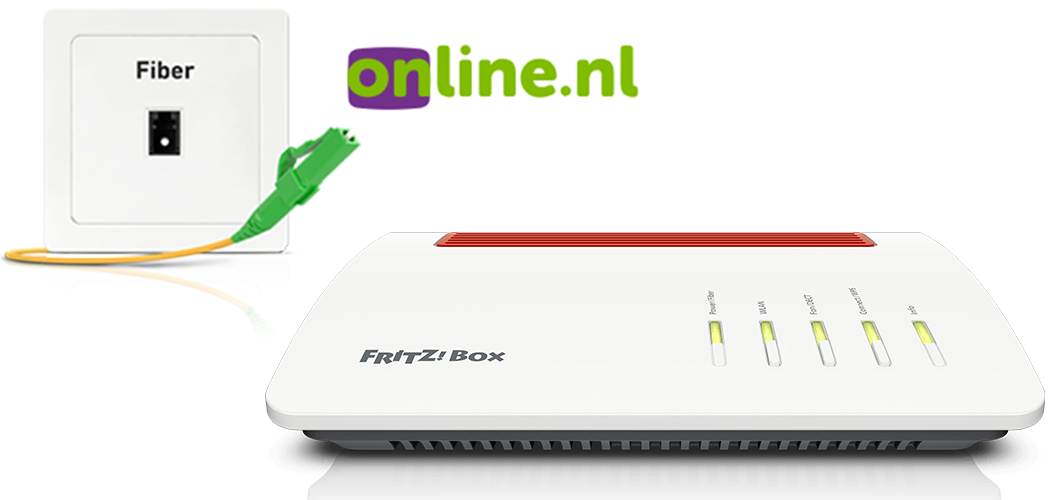
The FRITZ!Box is optimally prepared for use with Online.nl. Simply connect the FRITZ!Box to the fiber optic connection and select Online.nl as the internet service provider in the FRITZ!Box.
The complete FRITZ!Box range of functions for internet, multimedia, and smart home is then available to all of the devices in the home network without restriction.
Important:Currently, we do not have any information about how to use Online.nl's telephony function with the FRITZ!Box. As soon as we find out, we will update this guide.
Requirements / Restrictions
- The SFP module 'FRITZ!SFP AON' is required for AON fiber optic connections.
- The SFP module 'XGS-PON' is required for XGS-PON fiber optic connections.
Note:All instructions on configuration and settings given in this guide refer to the latest FRITZ!OS for the FRITZ!Box.
1 Unlocking your FRITZ!Box
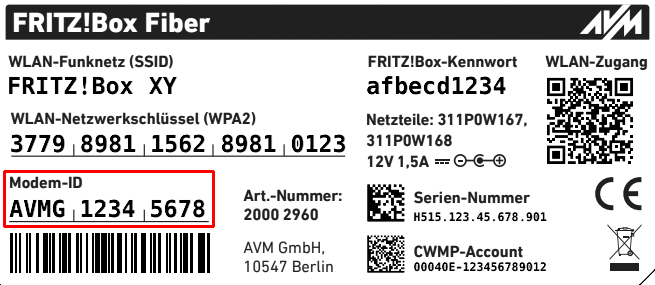
- Call Online.nl's customer service at 088 0038500 to have them unlock the FRITZ!Box. For this, give them the 'modem ID' on the FRITZ!Box's type label.
2 Inserting the SFP module into the FRITZ!Box
The FRITZ!Box is available in several different product variants, each of which is delivered with different components. If the FRITZ!Box you received did not have an SFP module inserted, perform the following step:
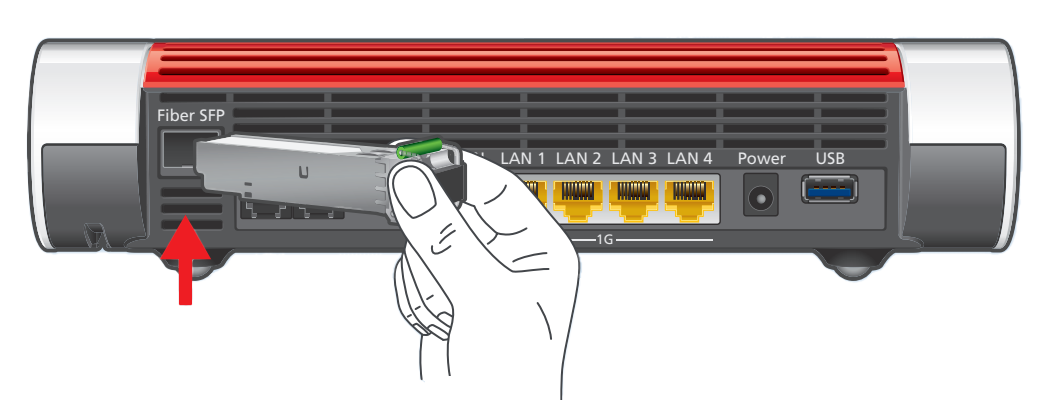
- Insert the SFP module that is appropriate for your fiber optic connection into the fiber slot of the FRITZ!Box:
- Use the SFP module 'FRITZ!SFP AON' for AON fiber optic connections.
- Use the SFP module 'FRITZ!SFP XGS-PON' for XGS-PON fiber optic connections.
Note:If you do not know what kind of connection you have, try out each of the SFP modules included with delivery until one fits. The Power/Fiber LED on the FRITZ!Box remains lit as soon as the correct SFP module is connected to the fiber optic connection.
3 Connecting the FRITZ!Box to your fiber optic connection
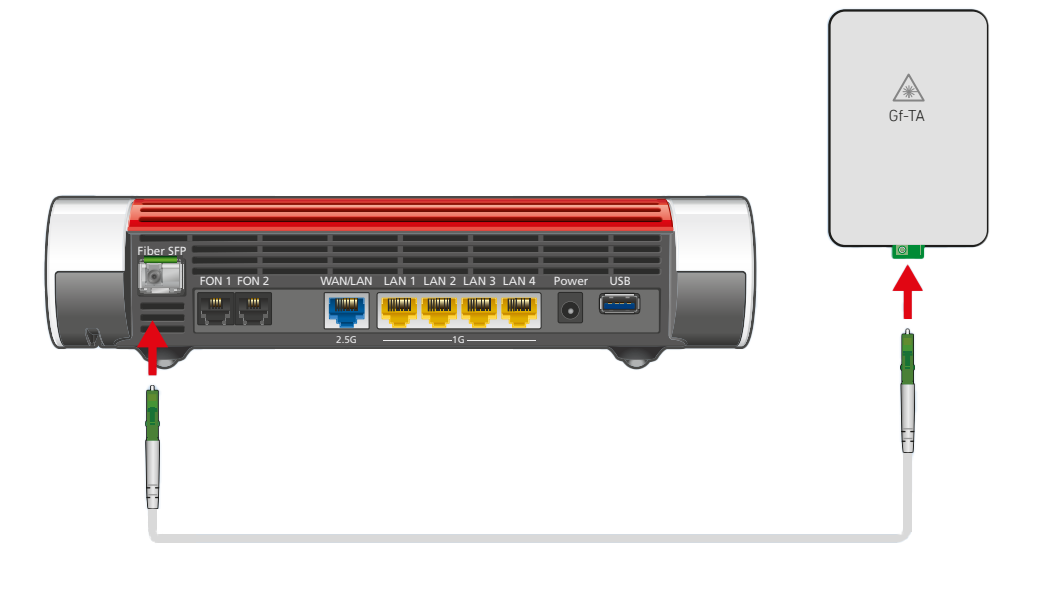
- Remove the dust protection caps from the fiber optic cable, the SFP module in the FRITZ!Box, and from the fiber optic socket (OTO).
- Connect the fiber optic cable to the SFP module in the FRITZ!Box and to the fiber optic socket. Do not bend the fiber optic cable and do not hold the ends of the cable in front of your eyes.
Note:You can find information on selecting a suitable fiber optic cable in our guide Which fiber optic cable do I need?
4 Plugging the FRITZ!Box in
- Plug the power adapter into the FRITZ!Box's power socket and plug it into an electrical socket.
5 Configuring the internet connection in the FRITZ!Box
- Open the FRITZ!Box user interface.
- Enter the FRITZ!Box password given on the type label of the FRITZ!Box and click on 'Log In'.
- If the wizard for internet access does not start automatically, click on 'Wizards' and then on 'Configure the Internet Connection'.
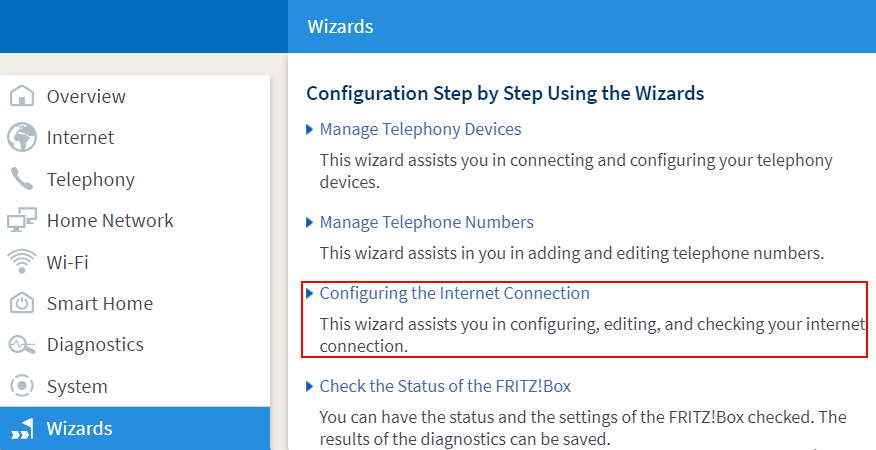
Calling up the FRITZ!Box wizard - Select 'Online.nl' from the drop-down list and enable the correct connection type.
- Click on 'Next' and follow the wizard's instructions. The wizard connects the FRITZ!Box to the internet.
Important:If the FRITZ!Box cannot establish an internet connection, your internet access may not have been activated yet. In this case, contact Online.nl.
 Deutschland
 International (English)
 United Kingdom
 Österreich
 Nederland
 España
 Italia
 Polska
 België (Nederlands)
 Luxemburg (Deutsch)
 Schweiz (Deutsch)