


Knowledge Base
go directly to the main content
Power LED flashes: The FRITZ!Box cannot establish a fiber optic connection
The FRITZ!Box's Power LED flashes? ✔ Here you can find out what this means and how to solve the problem.
The FRITZ!Box is cannot establish a fiber optic connection although it is configured for use with a fiber optic connection. The FRITZ!Box's Power/Fiber LED flashes continuously. The message 'Fiber optics interrupted' is displayed on the 'Overview' page of the FRITZ!Box user interface.
One of the following messages may be displayed in the fiber optic information or in the event log of the FRITZ!Box:
- 'The FRITZ!Box checked your connection and could not find a fiber optic connection.'
- 'The inserted SFP module does not match this fiber optic socket.'
- 'No connection can be established with the FRITZ!SFP currently inserted in the FRITZ!Box connected to the fiber optic connection [...]'
- 'No SFP module was detected [...]'
- 'Fiber optic cable not connected [...]'
- 'The fiber optic connection is interrupted.'
Important:This guide only applies to FRITZ!Boxes that are operated directly on the fiber optic connection. If you are using an additional fiber optic modem instead, proceed as described in the guide Cannot access the internet via a different modem.
Simply proceed as described below. After each measure, check whether the problem is solved.
1 Setting the country of use
- Click on 'System' in the FRITZ!Box user interface.
- Click on 'Region and Language' in the 'System' menu.
- Click on the 'Region' tab.
- Select your country from the drop-down list. If your country is not displayed, select 'Other country'.
Important:When the regional options are changed, the phone settings (for example telephony devices, call diversion settings, dialling rules) are reset and must be reconfigured.
- If you are asked for the time zone, select the correct time zone.
- Click on 'Apply' to save the settings.
2 Checking the SFP module
The FRITZ!Box is available in several different product variants, each of which is delivered with different components. If the FRITZ!Box you received did not have an SFP module inserted, perform the following step:
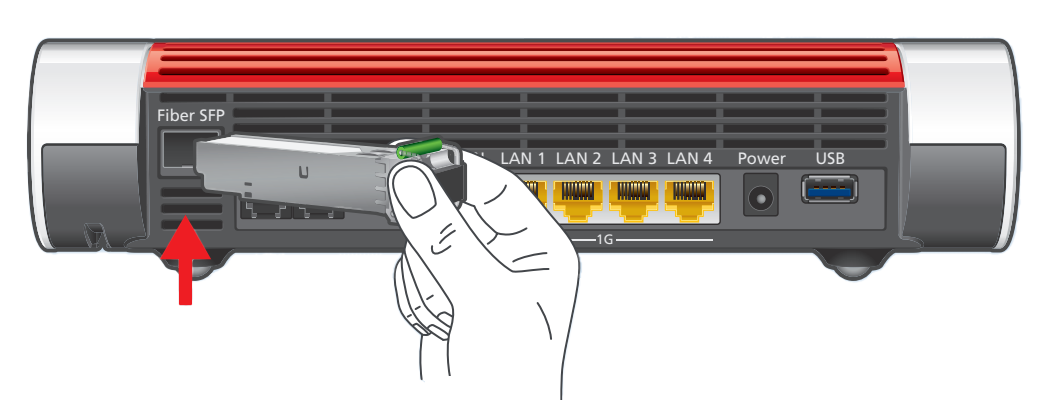
- Insert the SFP module that is appropriate for your fiber optic connection into the fiber slot of the FRITZ!Box:
- Use the SFP module 'FRITZ!SFP AON' for AON connections.
- Use the SFP module 'FRITZ!SFP GPON' for GPON connections.
- Use the SFP module 'FRITZ!SFP XGS-PON' for XGS-PON connections.
Note:If you do not know what kind of connection you have, test all of the SFP modules supplied with the FRITZ!Box. The Power/Fiber LED remains lit as soon as the FRITZ!Box is connected to the fiber optic connection using the correct SFP module.
3 Checking the cabling
It is often difficult to recognize faults in the cabling and they can remain unnoticed for a long time. Therefore, check the wiring in your home:
- Remove all cable extensions and adapters between the FRITZ!Box and the fiber optic socket.
- Use an undamaged cable to connect the FRITZ!Box to the fiber optic socket. The fiber optic cable may not have any kinks or be damaged.
Note:The SFP modules supplied with the FRITZ!Box have LC/APC sockets (compact connector, angle polished). Depending on the fiber optic socket, you may need to use a fiber optic cable with an adapter or a cable with different plugs on both ends. Normally the cable length in the home does not matter.
4 Testing a different cable
The cable that connects the FRITZ!Box to the fiber optic connection could be defective. Therefore, test a different cable:
- Use a different fiber optic cable (for example from a different fiber optic modem) to connect the FRITZ!Box to the fiber optic socket.
- If the Power/Fiber LED lights up constantly after 10 minutes, the fiber optic cable used before is defective and must be replaced.
Note:Fiber optic cables can be purchased from electronics retailers. You can find information on the different types of plugs and polishing in the guide FRITZ!Box: Which fiber optic cable do I need?.
5 Installing the latest FRITZ!OS for the FRITZ!Box
Install the latest version of FRITZ!OS because it contains improvements for different fiber optic connections that can resolve the error:
- Perform a manual FRITZ!OS update.
6 Contacting your provider
If the FRITZ!Box still does not establish the fiber optic connection, you may have to have your internet provider activate it, or the fiber optic connection may not have been activated yet, or it is disrupted:
- Contact the customer service of your internet provider and have them activate the FRITZ!Box for your fiber optic connection and check your fiber optic connection, if necessary.
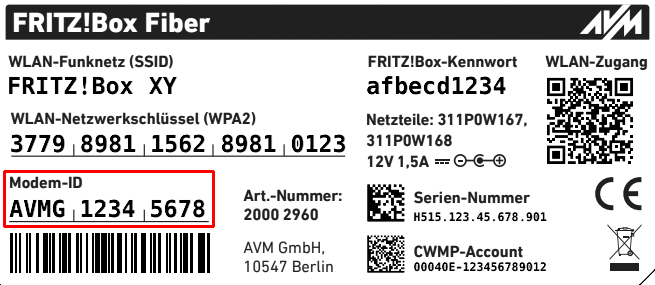
Modem ID on the FRITZ!Box's type label - Depending on the provider, you can either call their customer service or use an activation portal to activate it. With some providers, the FRITZ!Box's 'modem ID' given on the type label is required to activate it.
-
ATTENTION!You may be charged for checking your fiber optic connection. Ask your provider about charges in advance!
 Deutschland
 International (English)
 United Kingdom
 Österreich
 Nederland
 España
 Italia
 Polska
 België (Nederlands)
 Luxemburg (Deutsch)
 Schweiz (Deutsch)